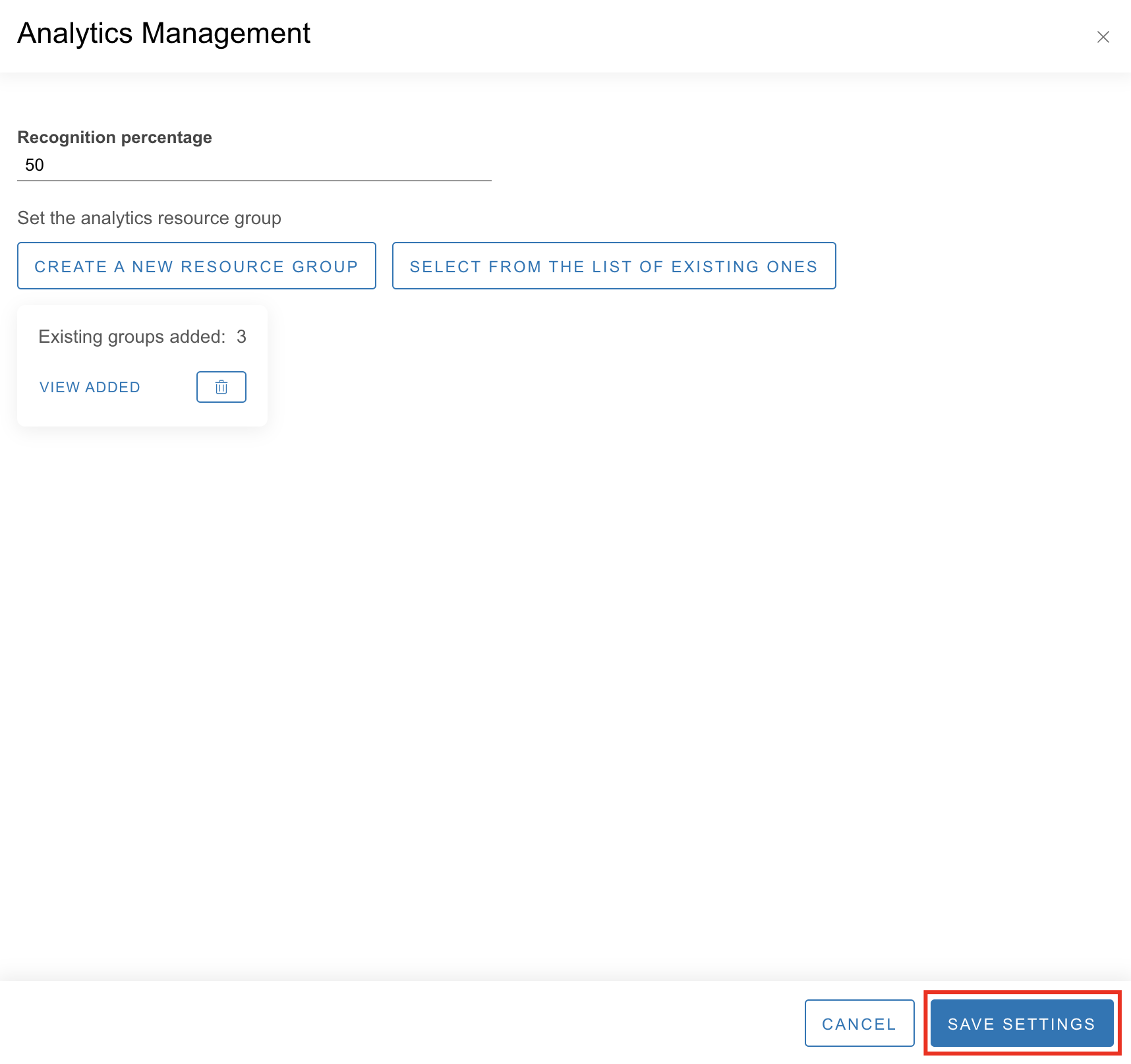
The Analytics tab allows you to configure face recognition on the intercom to automatically unlock the door.

To set up analytics, follow the steps:
-
Add a resource group.
-
Add resources to the group.
-
Set up analytics.
If necessary, it is possible to edit a resource group, resources, analytics settings, delete resources and resource groups.
Add a resource group
To add a resource group:
-
Select the Add group button.
-
Enter a group name.
-
Select the Create button.

Edit a resource group
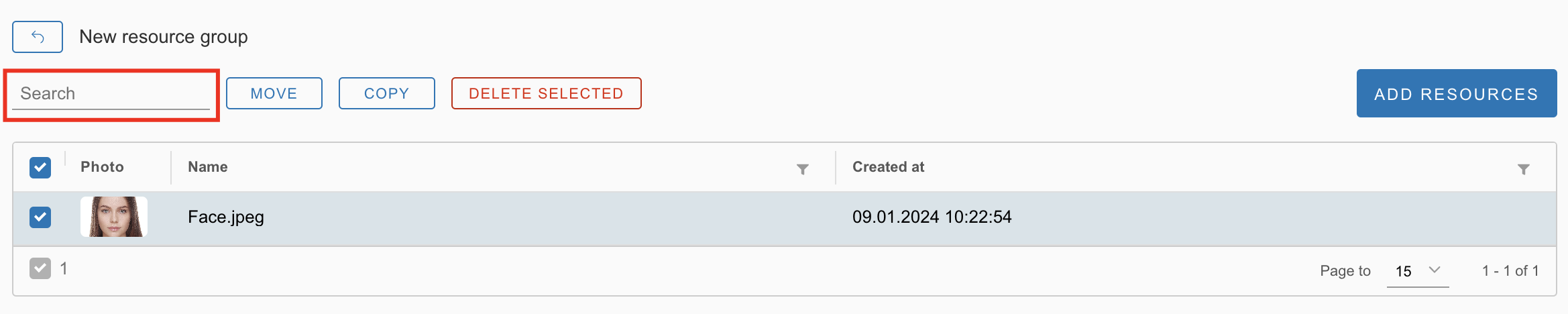
To edit a resource group, select a line with a group in the list.
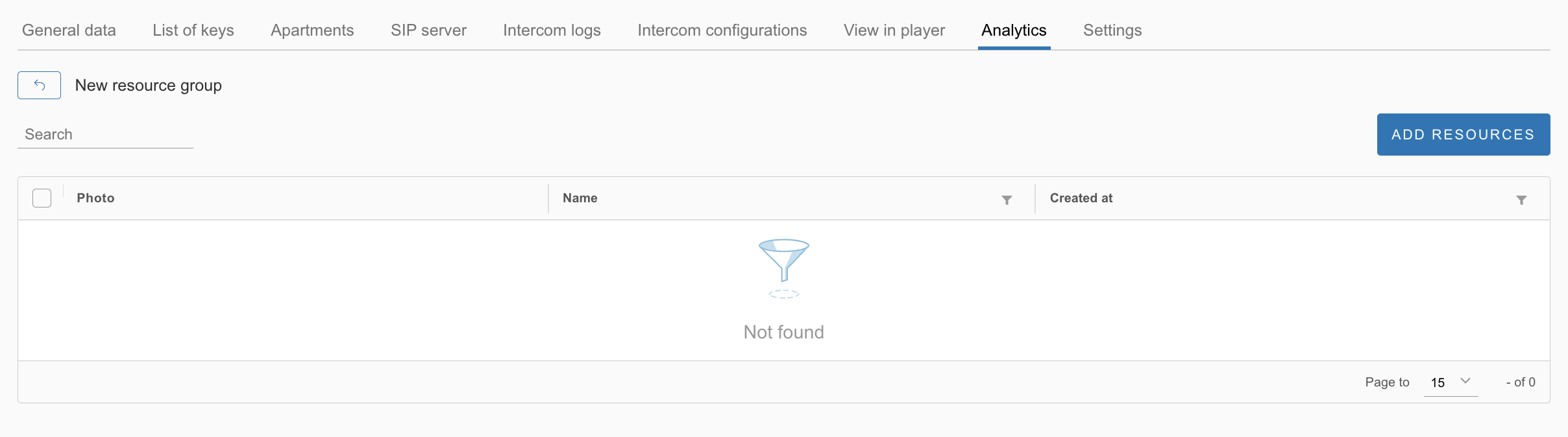
On the opened page, you can perform the following actions:
-
Add a resource
-
Move a resource
-
Copy a resource
-
Delete a resource
-
Search for resources
Add a resource
To add a resource:
-
Select the Add resources button.
-
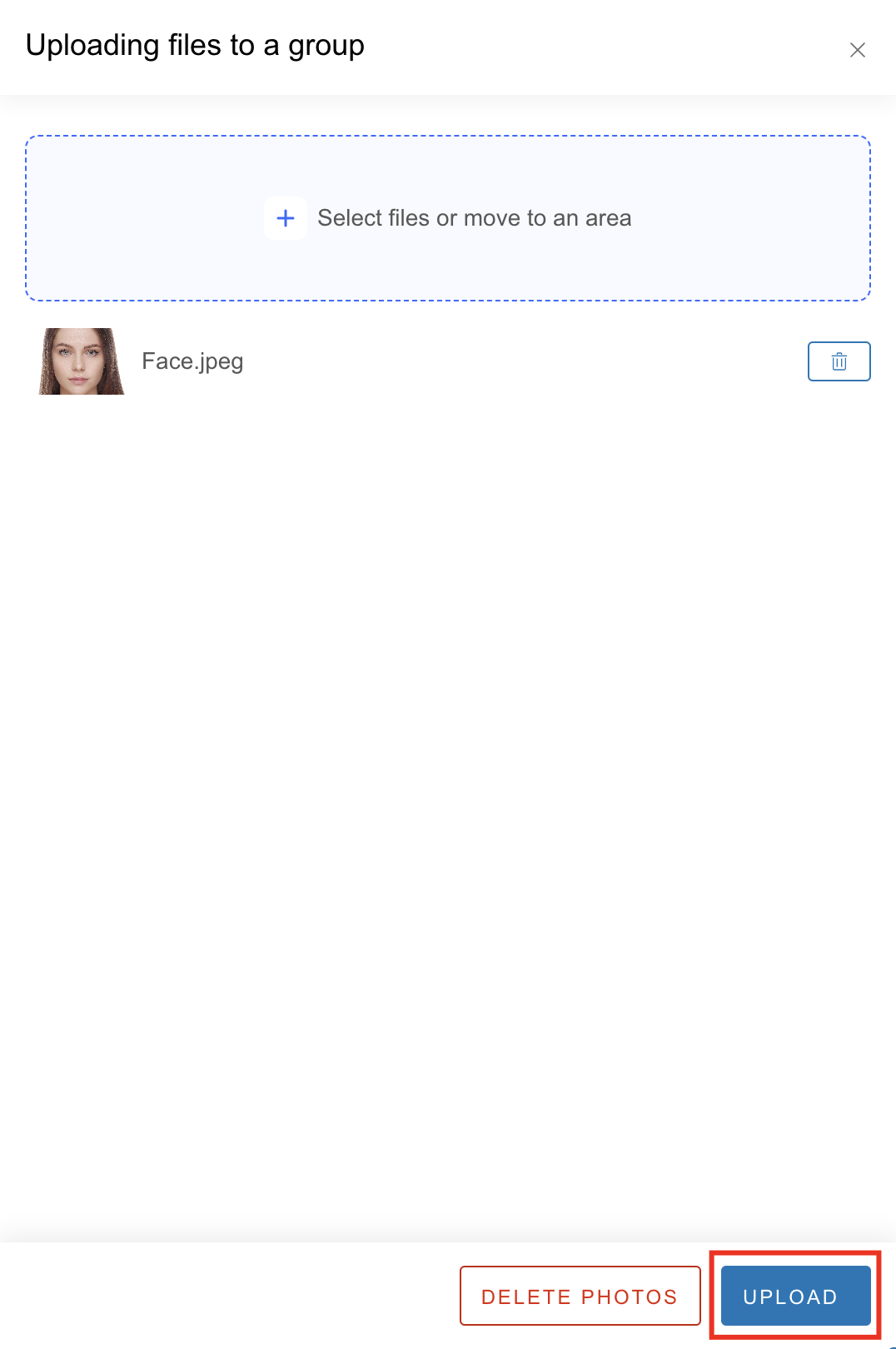
Drag and drop your files here, or click to select them. Supported file formats include JPG, JPEG, BMP, PNG, TIFF, and PSD. You can add or remove files as needed.
-
Select the Upload button.
Move and copy resources
To move a resource means to move it from one resource group to another, removing that resource from the original group.
Copying a resource means copying it from one group to another, and the given resource will be kept in both resource groups.
To move or copy a resource:
-
Select the checkboxes for relevant resources.
-
Select the relevant Move or Copy button.

-
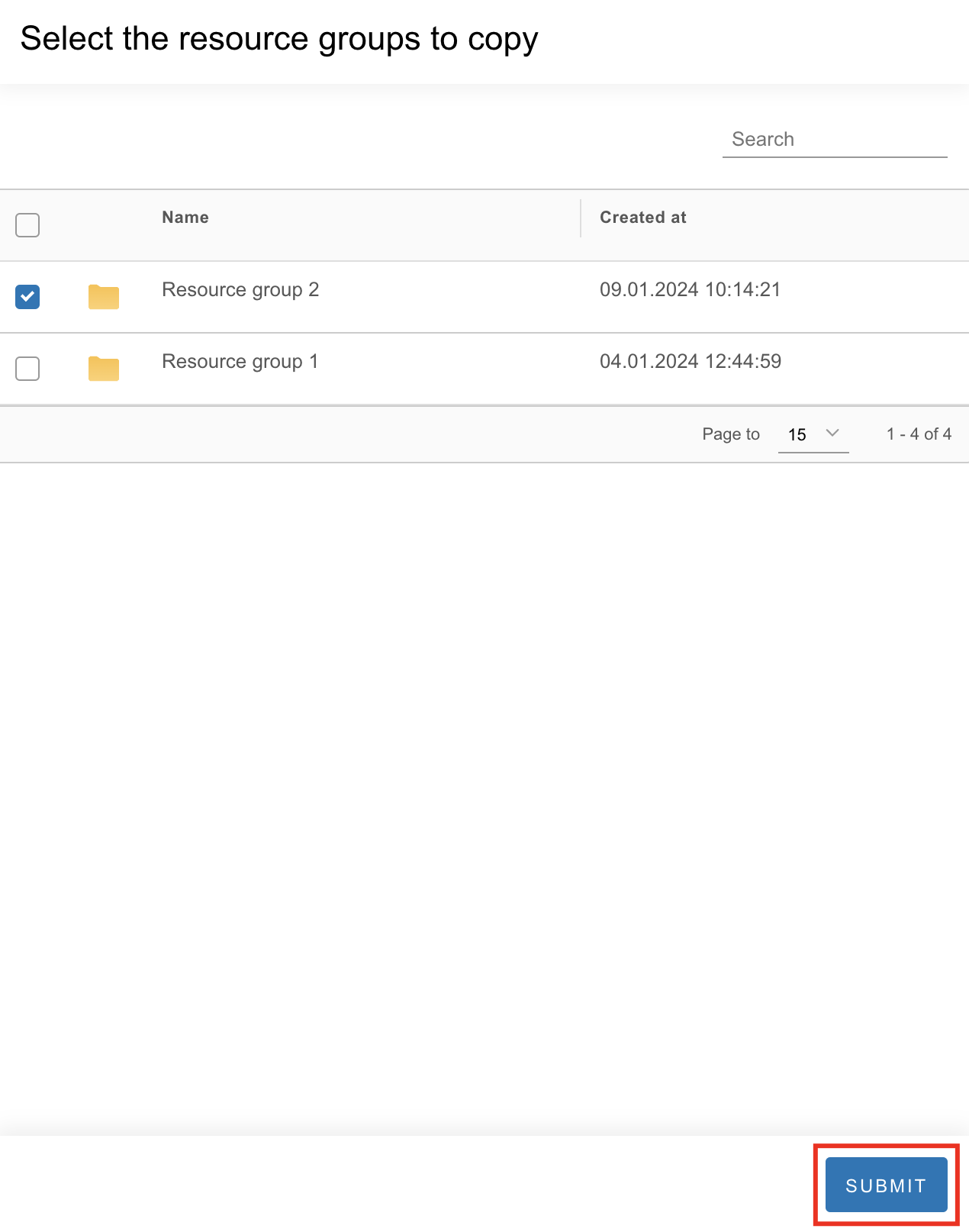
In the opened window, select a group to move or copy. If necessary, use the search.
-
Select the Submit button.
Delete a resource
To delete a resource:
-
Select the checkboxes for relevant resources.
-
Select the Delete selected button.
Search
Use the Search field to search for resources.
Set up analytics
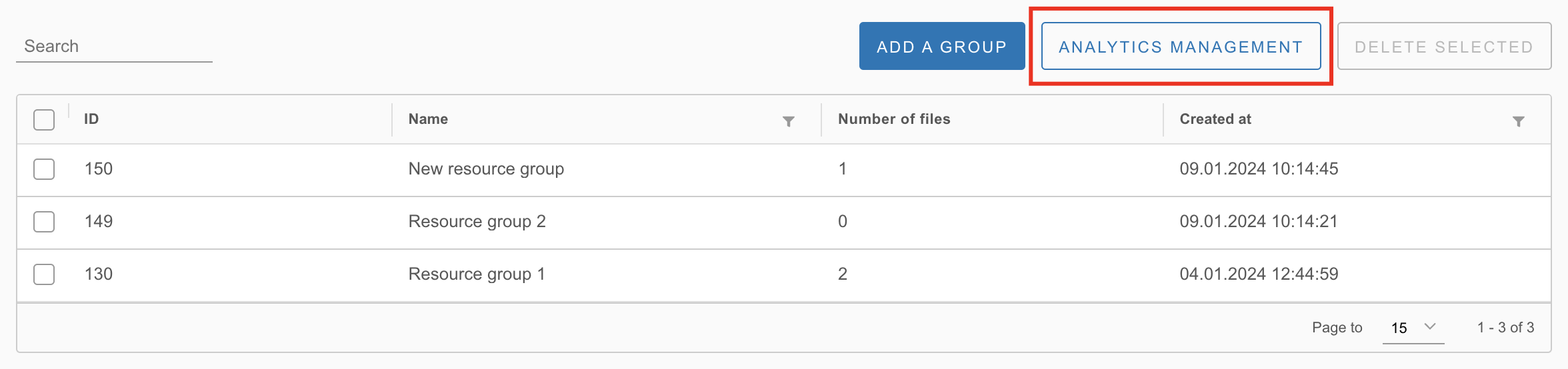
To configure analytics, use the Analytics management button.
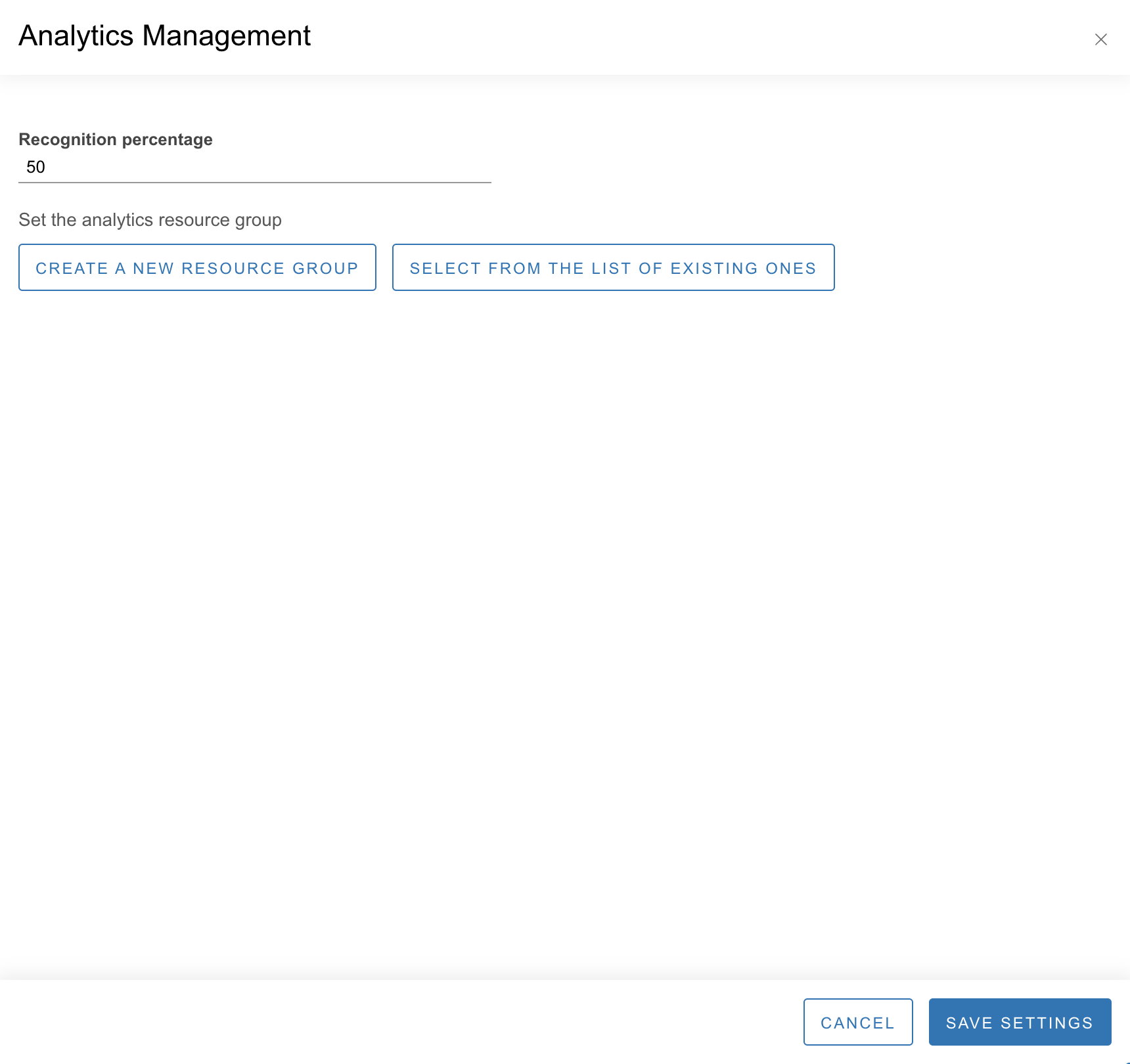
In the opened window:
-
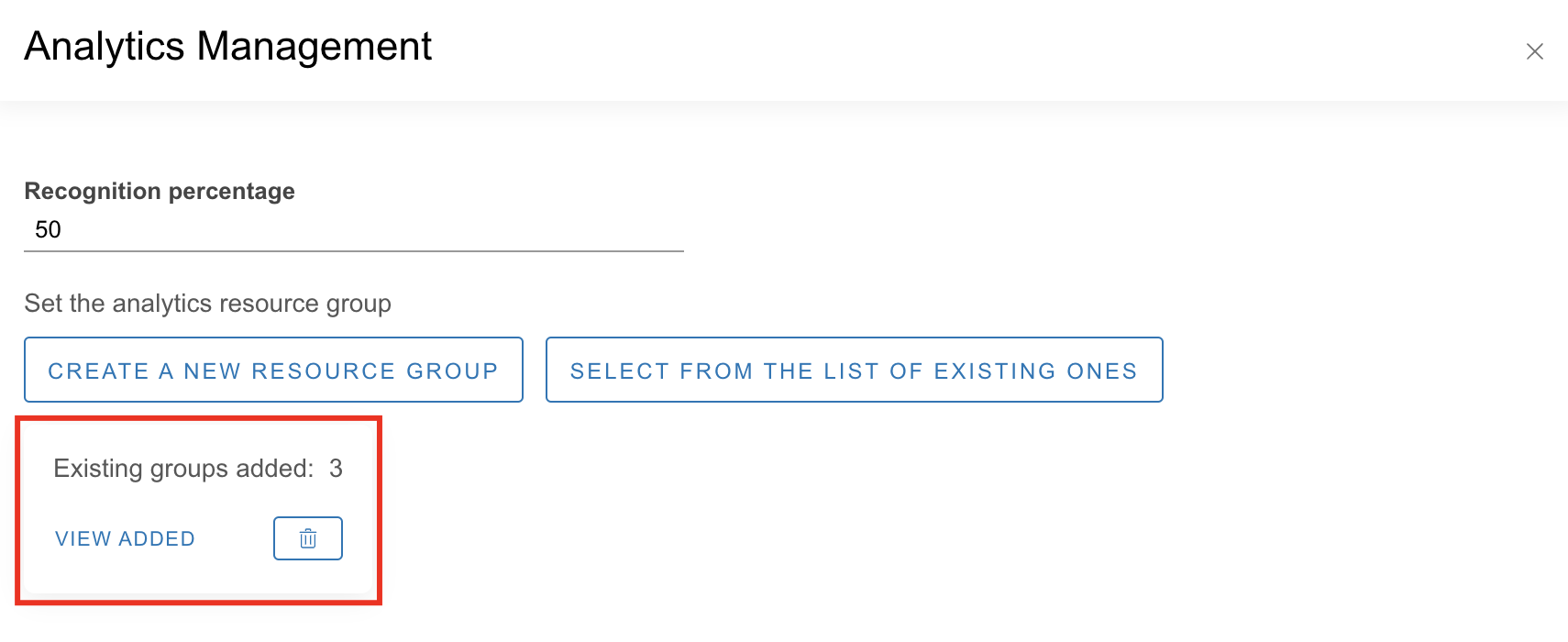
Set up the recognition percentage (the minimum matching percentage to trigger a reaction).
-
Create or select a resource group from the list of existing ones.
-
To create a new resource group, select the corresponding button. When creating a group, the same procedure is repeated as when adding a resource group, described above.
-
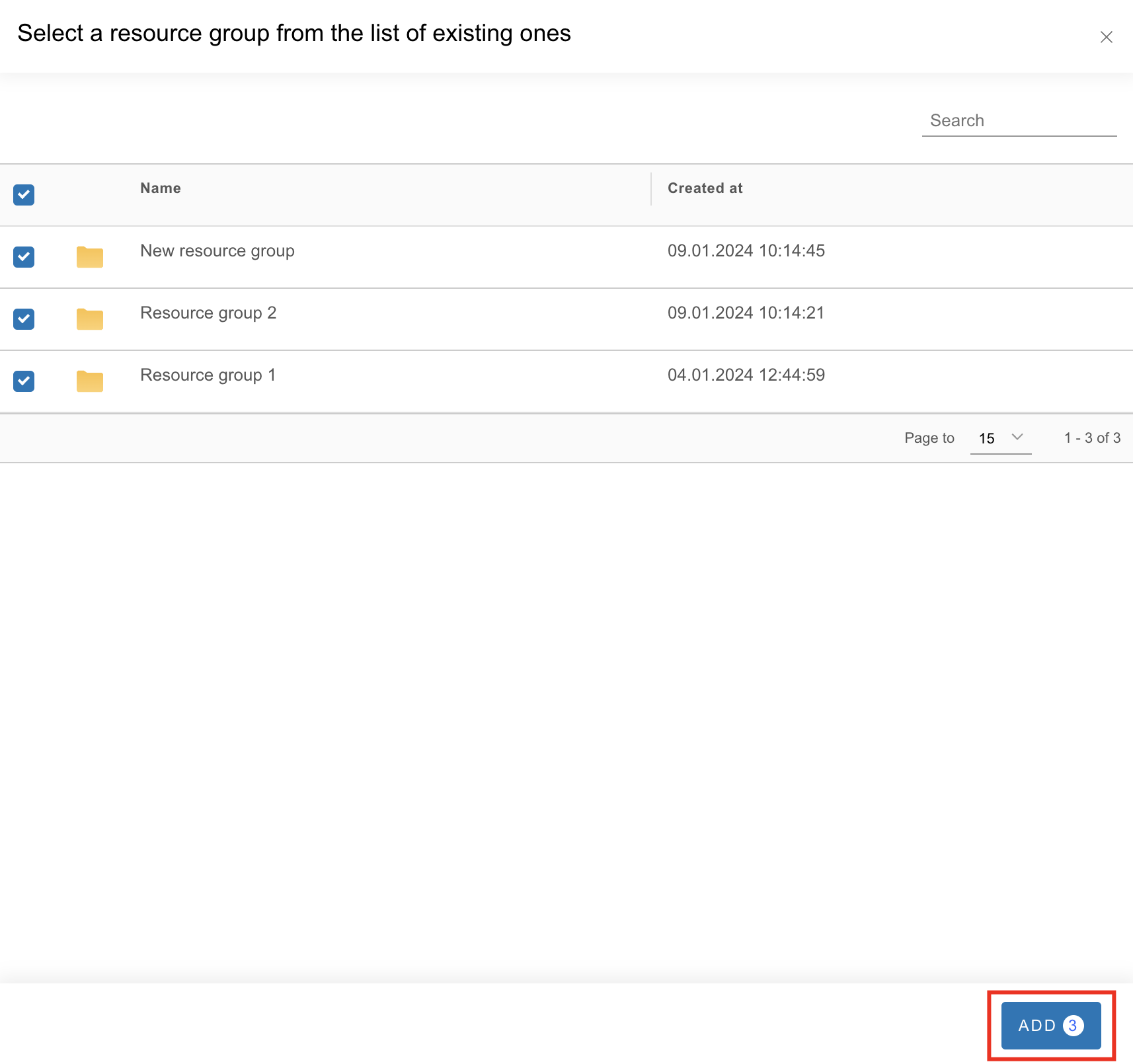
To select a group from the list of existing ones, use the Select from the list of existing ones button. Next, select one or more groups. If necessary, use the search. Then, use the Add button.
-
-
If necessary, review the added resource groups or remove them. When viewing added groups, it is possible to remove one or more groups. It is also possible to add other resource groups or create a new one.
-
Save the settings by selecting the corresponding button.