
The User events tab includes the following events:
-
Events created when watching camera feed in Live mode – quick events.
-
Custom events that are created when watching camera footage in Archive/DVR mode.
-
Custom events created in the user web interface and mobile application.
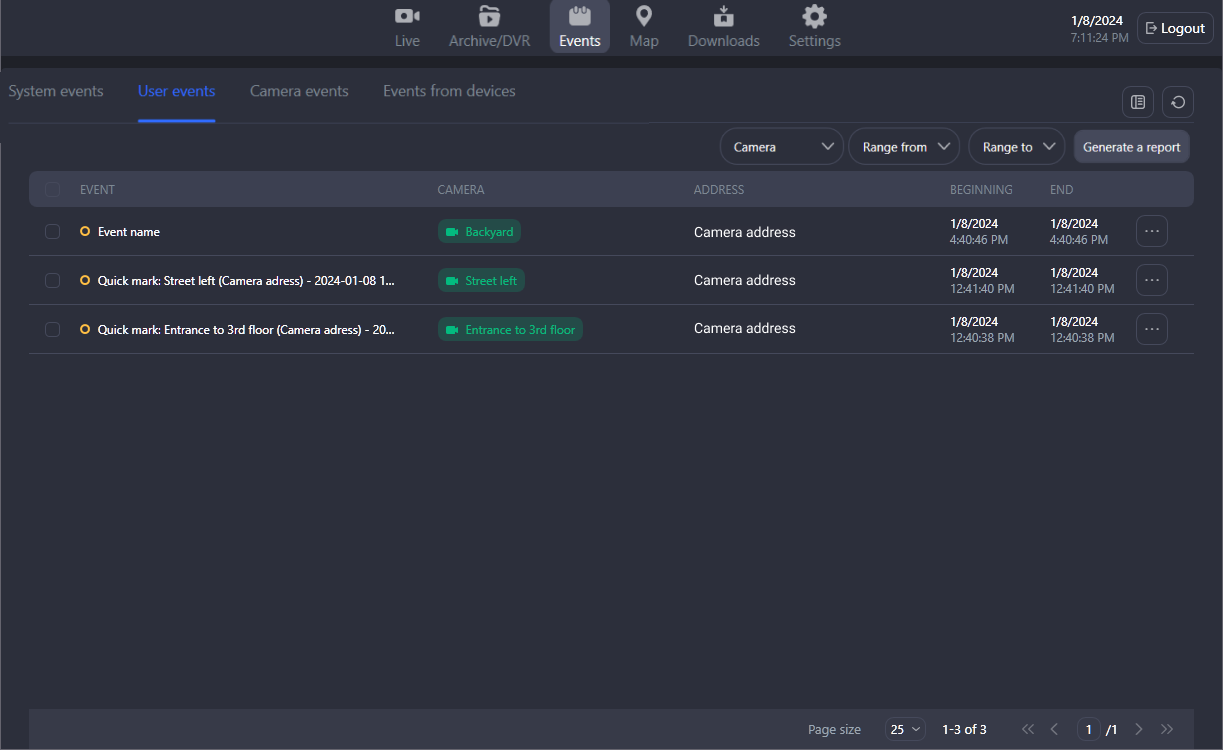
For each event, the following information is presented:
-
An event type
-
A quick event is indicated with the Quick mark type, camera name, date, and time.
-
A custom event is indicated with the name specified when the event was created.
-
-
A camera name.
-
A camera address.
-
Event start date and time.
-
Event end date and time.
Watch the event in the player
To view the archive of the recorded event, left double-click the event name or camera name. Optionally, you can navigate from the context menu of the event by selecting Go to event. This will open the player to watch the recorded event.
If there is no archive at the time of the event, a message “The start of the event is outside the current archive limits. Go to the archive?” is displayed. Selecting Yes, navigates you to the archive of this camera at the time of the event. Selecting No, you stay on the current event page.
Open on a layout
It is possible to simultaneously view several events at the same time.
To do this, select the checkboxes of relevant events and Open on layout.

You can select up to six events.
As a result, you navigate to the Archive/DVR section, where a new layout will be created with the corresponding cameras and playback of the selected events.