
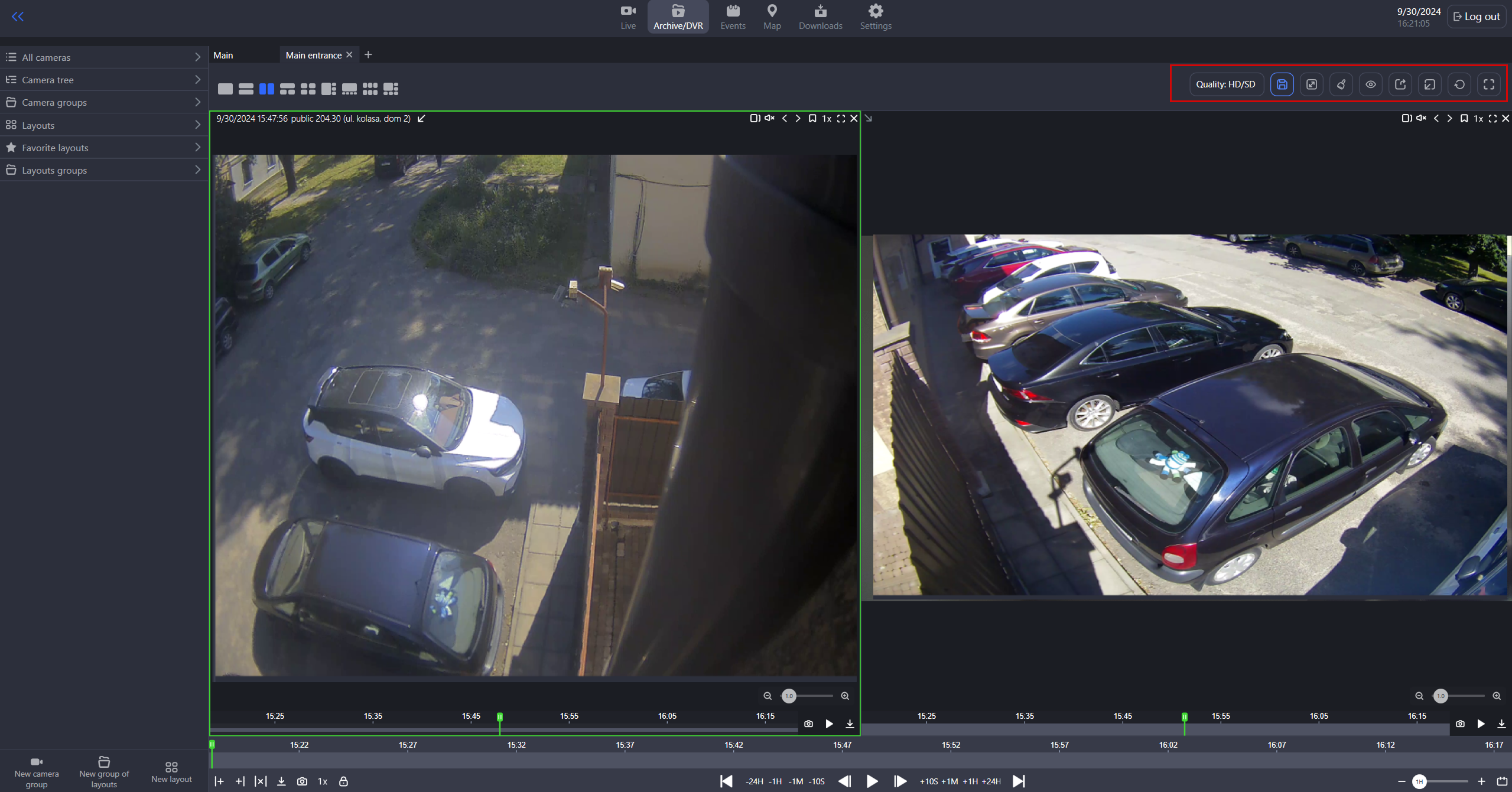
In the Archive/DVR section, you can find the set of tools to manage the current layout at the top right of the workspace.

|
The Save layout button is used to save changes to the layout. From within the Main layout, this button creates a new layout. |
|
|
The Quality button allows to simultaneously set the viewing stream quality for all cameras within the current layout. See description below. |

|
Use the Fill camera image button to expand an image within each camera cell in the current layout. This scaled view is also applied in full-screen mode. To revert to the original image size, select the button again. |
|

|
Use the Clear layout option to clear all cameras added to the layout. As a result, all the cameras on the layout will be closed. To save changes on the layout once it’s cleared, select the Save button. |

|
Open a layout in a detached window. The Main layout doesn’t feature this option. |
|

|
Open a layout on another monitor. Selecting this button opens a monitor selection window. The Main layout doesn’t feature this option. |

|
Show/hide controls on all screens [F7] The button is used to hide or show controls for each camera on all layouts. Pressing F7 while viewing a camera in a layout toggles the display of controls for all cameras within that layout and any other open layouts. |

|
Switch detached windows to full screen. Selecting this button will display all layouts currently in separate windows and on other monitors in full-screen mode. Selecting Restore detached windows from full-screen returns all detached windows from full-screen mode to their original size and position. F12 serves as a shortcut for this functionality. |

|
The Expand/minimize all detached windows option is used to minimize or maximize all layouts that are open in separate windows and on other monitors. F8 serves as a shortcut for this functionality. |

|
Select Reconnect to all idle streams to restore the connection to streams that stopped working. |

|
Select this button to open the layout full screen. F11 serves as a shortcut for this functionality. |
Select the viewing quality for archive
The Quality button allows to simultaneously set the viewing stream quality for all camera videos within the current layout. The button will only become active if at least one camera on the layout has archived recordings available for both streams.
The following values can be selected:
-
HD quality – high definition quality
-
SD quality – standard definition quality
-
HD/SD quality – mixed quality. The HD/SD selector is available when there are recordings available both from the HD and SD camera streams for at least camera within the current layout. Selecting HD/SD quality won't change the display for cameras with archives from only one stream.
The video quality you choose directly impacts how the archived footage appears on each camera's timeline. For details, see the Cameras. Archive/DVR documentation page.