
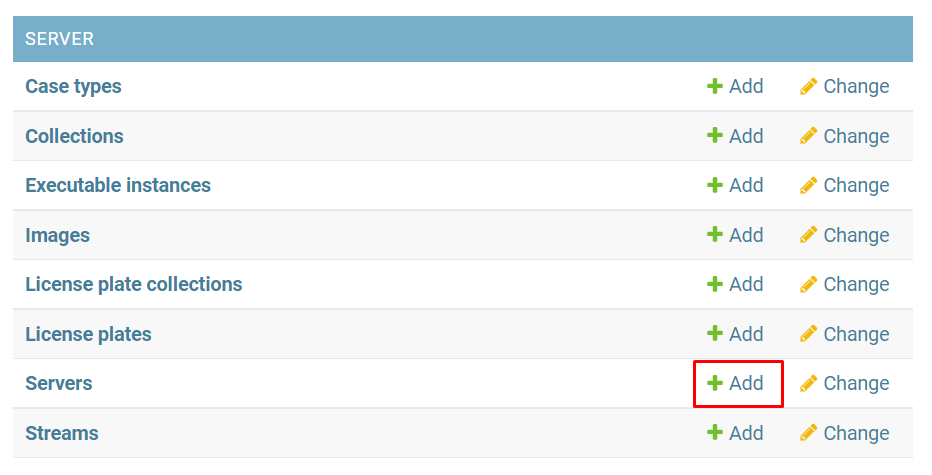
To add a server, select Add.
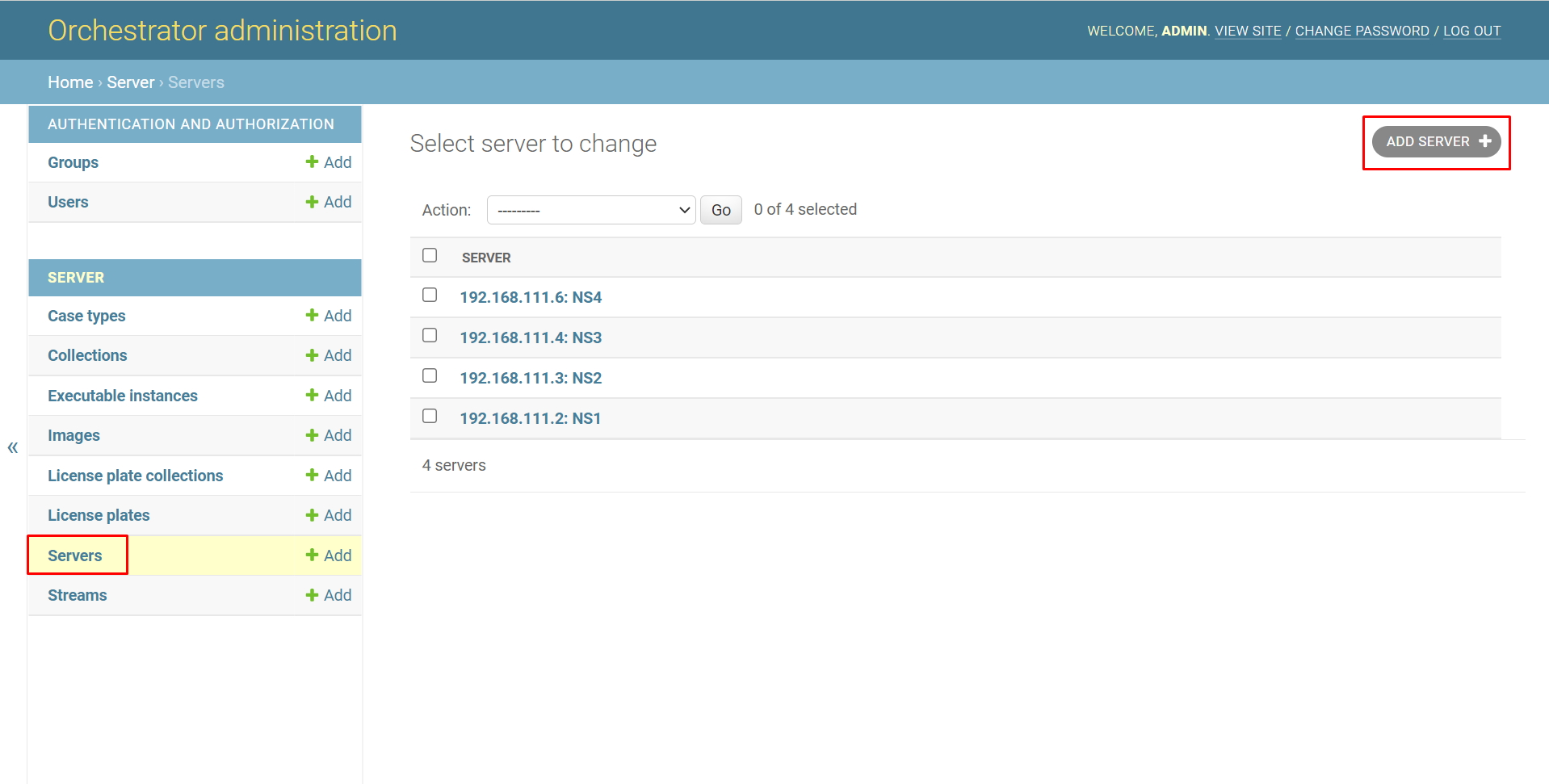
Or open the Servers page and click Add server.
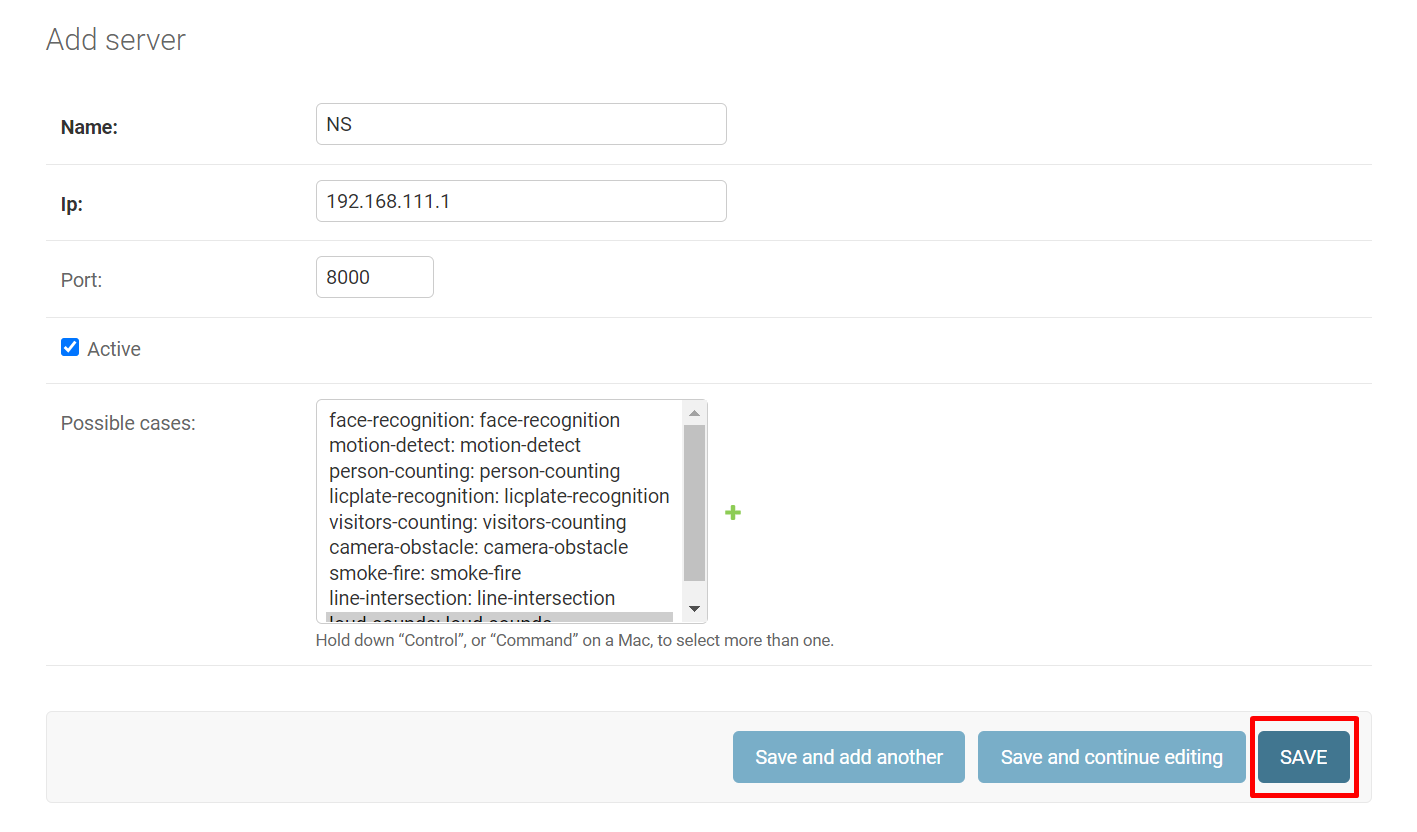
In the opened window:
-
Enter the name of the server in the Name field.
-
In the Ip field, enter the IP address of the server.
-
Enter the port on which the orchestrator client is running (by default 8000).
-
If necessary, select the Active checkbox (if not selected, tasks for processing analytics will not be sent to this server).
-
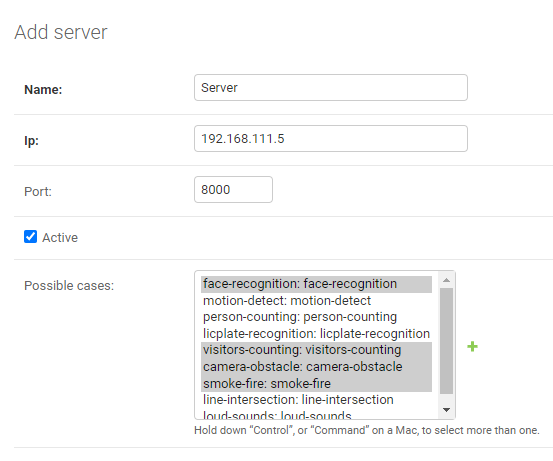
The Possible cases field contains all analytics types added in Case types by default. To specify which analytics types the server needs to process, select them with the mouse or using the Ctrl (Command on Mac) + left mouse button shortcut. To add a new analytics type, click on the add icon to the right of the field ➕.
-
Complete the addition by clicking Save.
Click:
-
Save and add another to add another server after saving the current one. In this case, a new addition window will open.
-
Save and continue editing to open the editing window for this analytics type after saving.