
In the Address constructor section, the administrator creates the template of a multilevel address structure. For example, a city, a district, a street, a building, an entrance, and so on. This address template will be used as the base to create the addressees at which the video surveillance service will be provided.
By default, the address constructor is empty.
.png?cb=221d76345b5d729c94202c9a4c63d75f)
The section consists of three blocks:
-
Service availability check form. It is used to create a template.
-
Extra fields. These additional fields will be displayed to a User Portal user when they add an address.
-
Uploading files. These fields will allow users to upload files.
This section can be edited only if there are no B2C users added, regardless of their detail verification status, and no B2B users present.
Service availability check form
Select Create to create the first level of the address structure. This opens the following page, as on the image below:

You can’t edit the parameters on this page.
Select Create to navigate to the page, where you edit translations. This opens the following page, as on the image below:
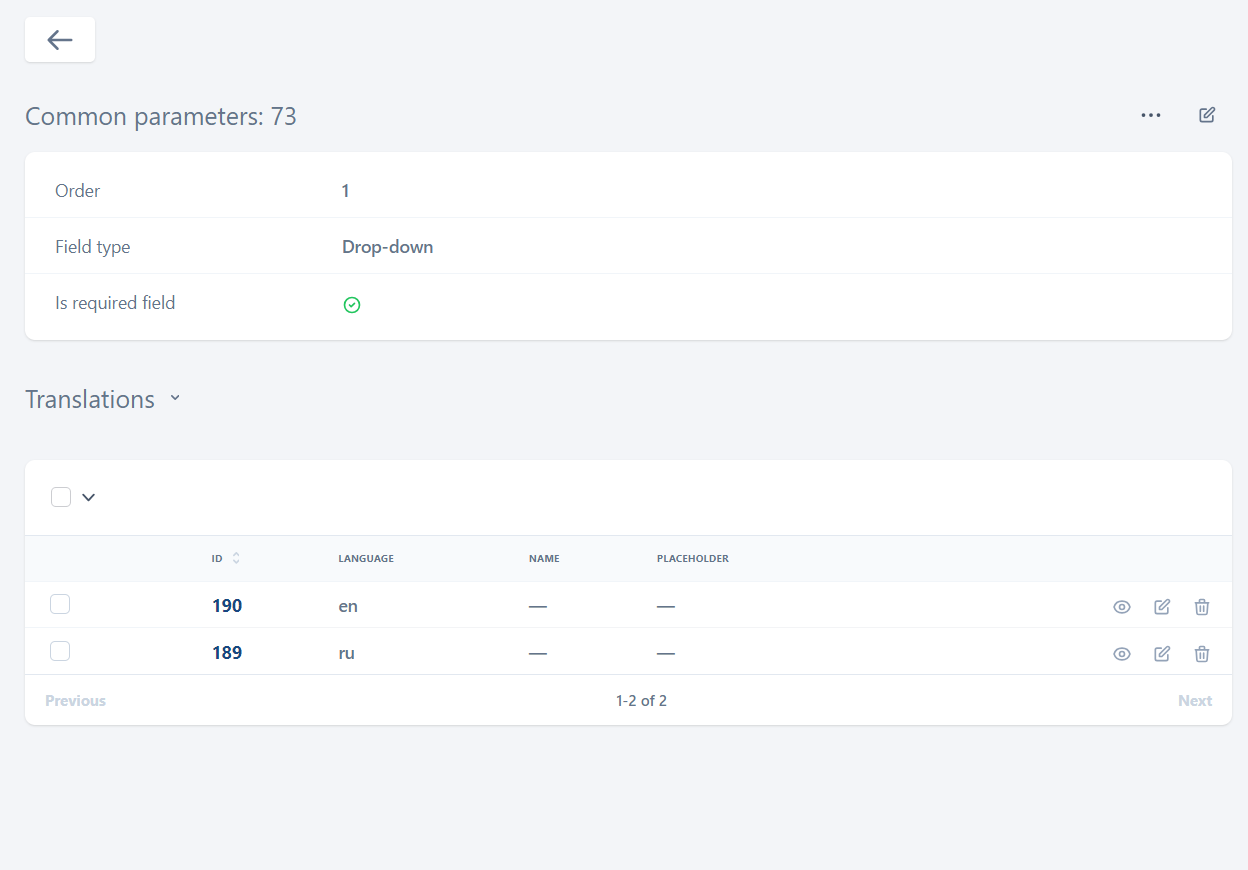
In the Translations section, provide translation for each language that is available on the User Portal. For this, select the Edit icon for a relevant language. This opens the following page, as on the image below:
.png?cb=bd2af64ae171a47f678bf5c4d1b2e6d1)
Complete the fields:
-
Name. Give a name to the address level.
-
Placeholder. Provide the tooltip that will be displayed to users in the input field.
To save the introduced changes, select Update.
To generate subsequent levels of address elements, navigate back to the address elements list and select the Create button. This action will establish the second tier of the address hierarchy. To further extend the address structure, continue this process, which will sequentially create the third, fourth, and additional levels as needed.
The maximum number of levels isn’t limited.
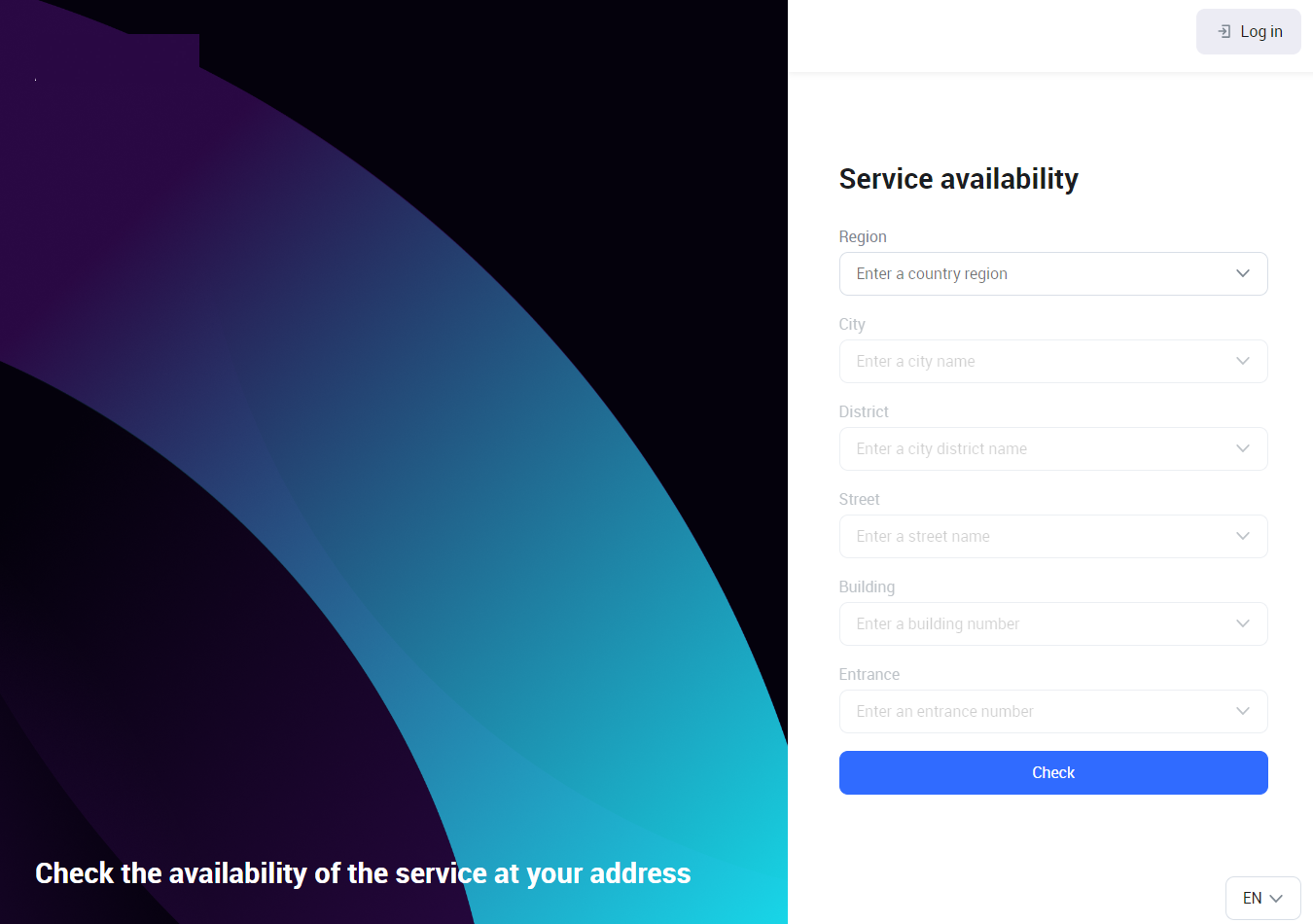
To create a relevant address structure with the required number of levels, repeat all the steps above. The example of a complete address structure is below.
.png?cb=74589355b58638f5a015d296a07e539a)
Every element within the address structure is allocated an order number that mirrors its hierarchical position. Should any element be removed, or its sequence altered, the system will adjust the order numbers to reflect these changes. This ensures that the integrity of the address hierarchy is maintained without manual intervention. An example of the address structure on the Service availability page.
Extra fields
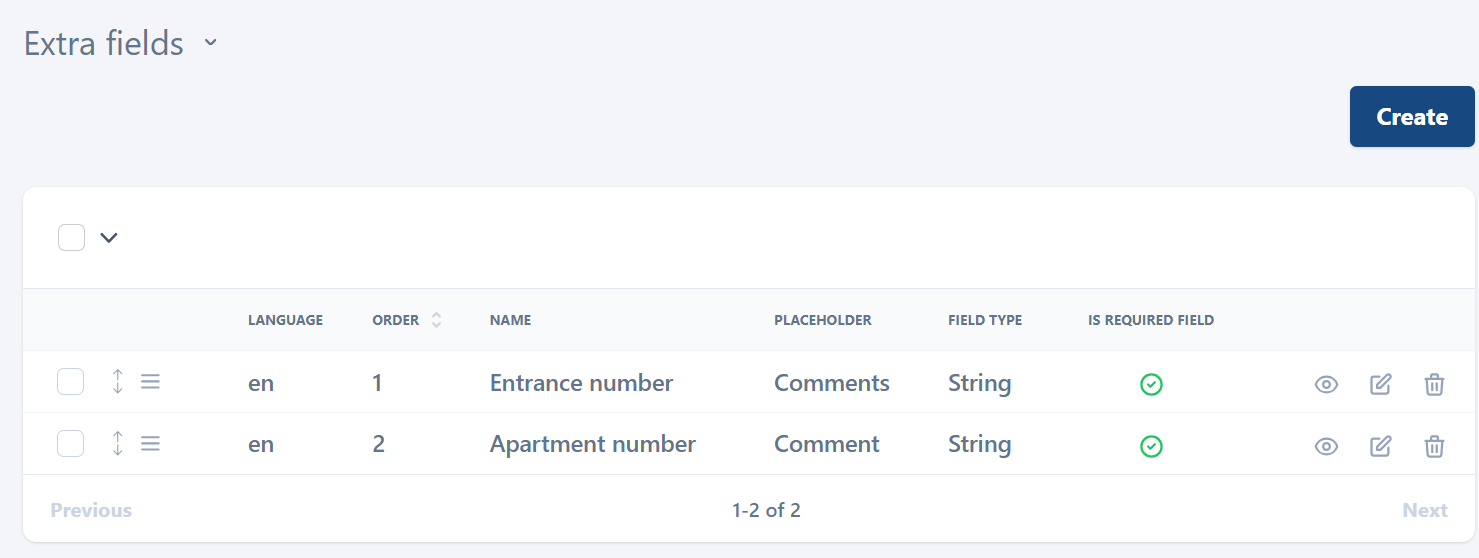
Extra fields are displayed to a Portal user when completing a service address on step 1 (Service address) of the data verification process.
To create an extra field, select Create. The process of creation and editing of translation is the same as described in the section above.
There is no level system for the extra fields.
An example of added extra fields.
An example of the added extra fields in the Extra information section when the user completes the form on step 1 (Service address).
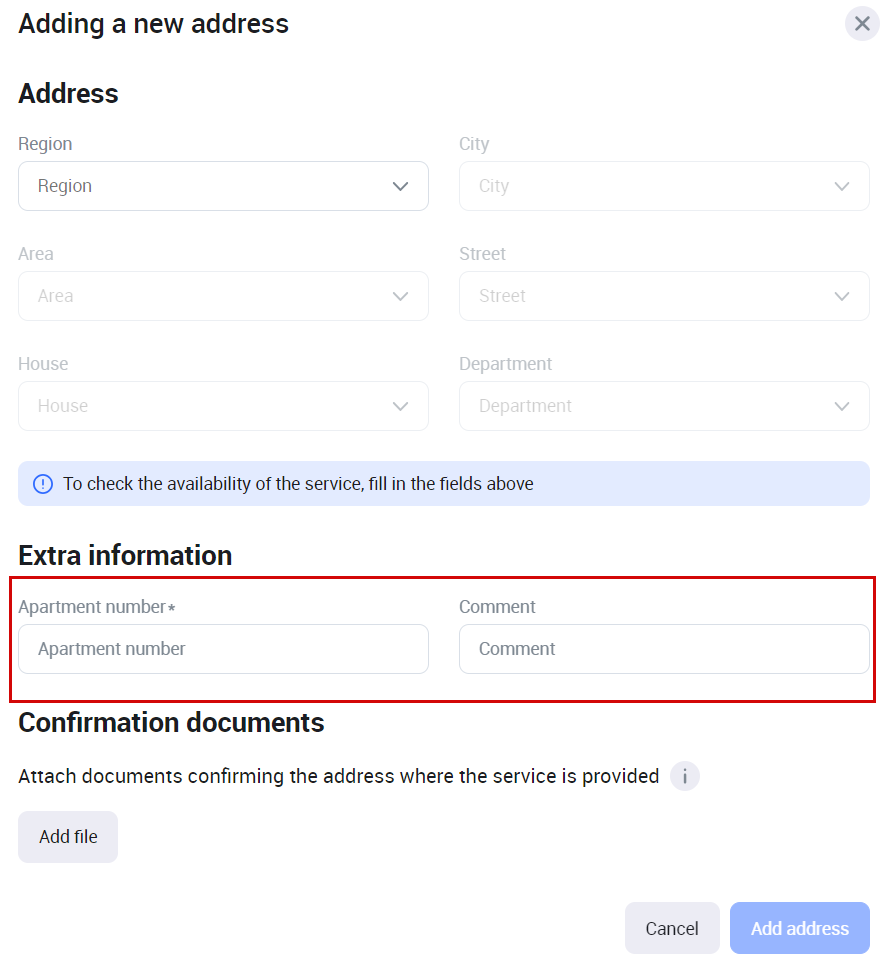
The extra fields are available on the User Portal pages where an address is specified.
Uploading files
In the Uploading files section, you manage the fields to upload files that are displayed to a User Portal user when completing a service address during step 1 (Service address) of the data verification process.
To create a field, select Create. This opens the following page, as on the image below:
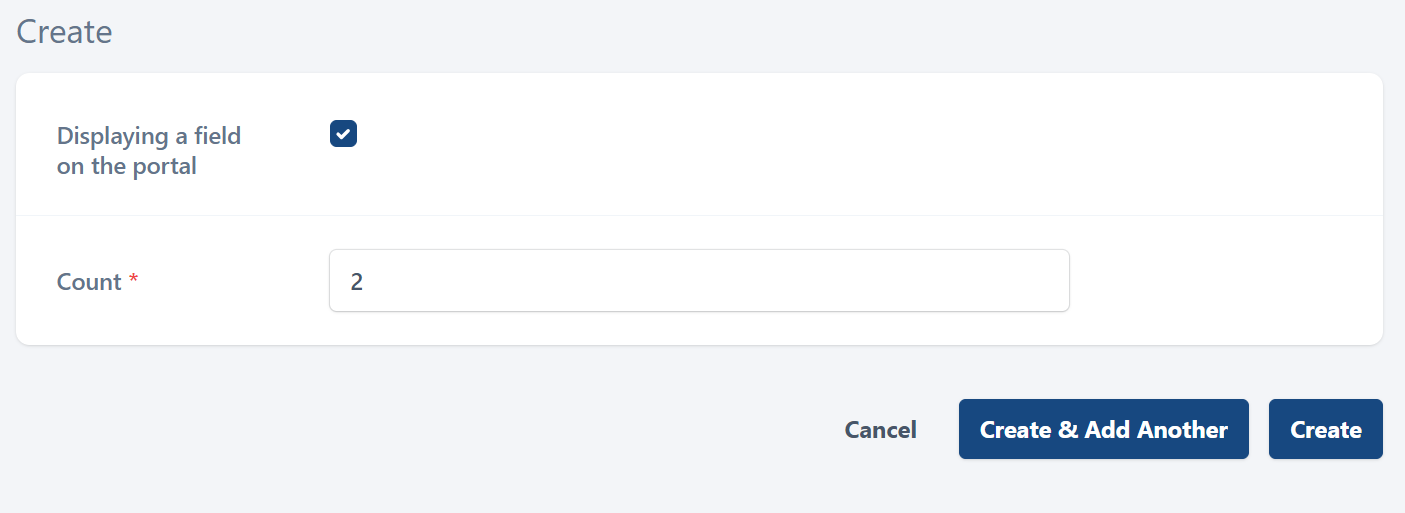
To allow User Portal users to upload files while filling out a service address in the first step (Service Address) of the data verification process, select the checkbox of the Displaying a field on the portal. This action will enable the file upload field for users during this stage.
In the Count field, input the relevant number to set the limit of attachable files for this field.
Next, select Create. This will navigate you to edit translations. In the Translations section, provide translation for each language that is available on the User Portal. For this, select the Edit icon for a relevant language.
.png?cb=b9b5cb3be7a9fffc2211eb370e56a597)
An example of the field to upload files in the Confirmation documents section when the user completes the form on step 1 (Service address).
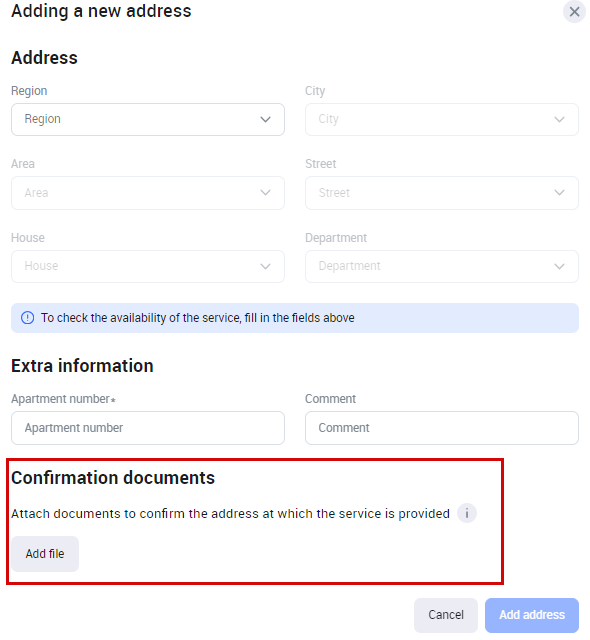
In the administrator interface, the uploaded files are displayed when viewing the added address in the card of a B2C user.