
You can add a new reaction in the one of following ways:
-
In the Events and reactions section.
-
When creating or editing an analytics case of any type in step 2.
Add a reaction in the Events and reactions section
On the Events and reactions tab, select Add.
Adding a reaction takes two steps.
Step 1. Select a relevant analytics event type
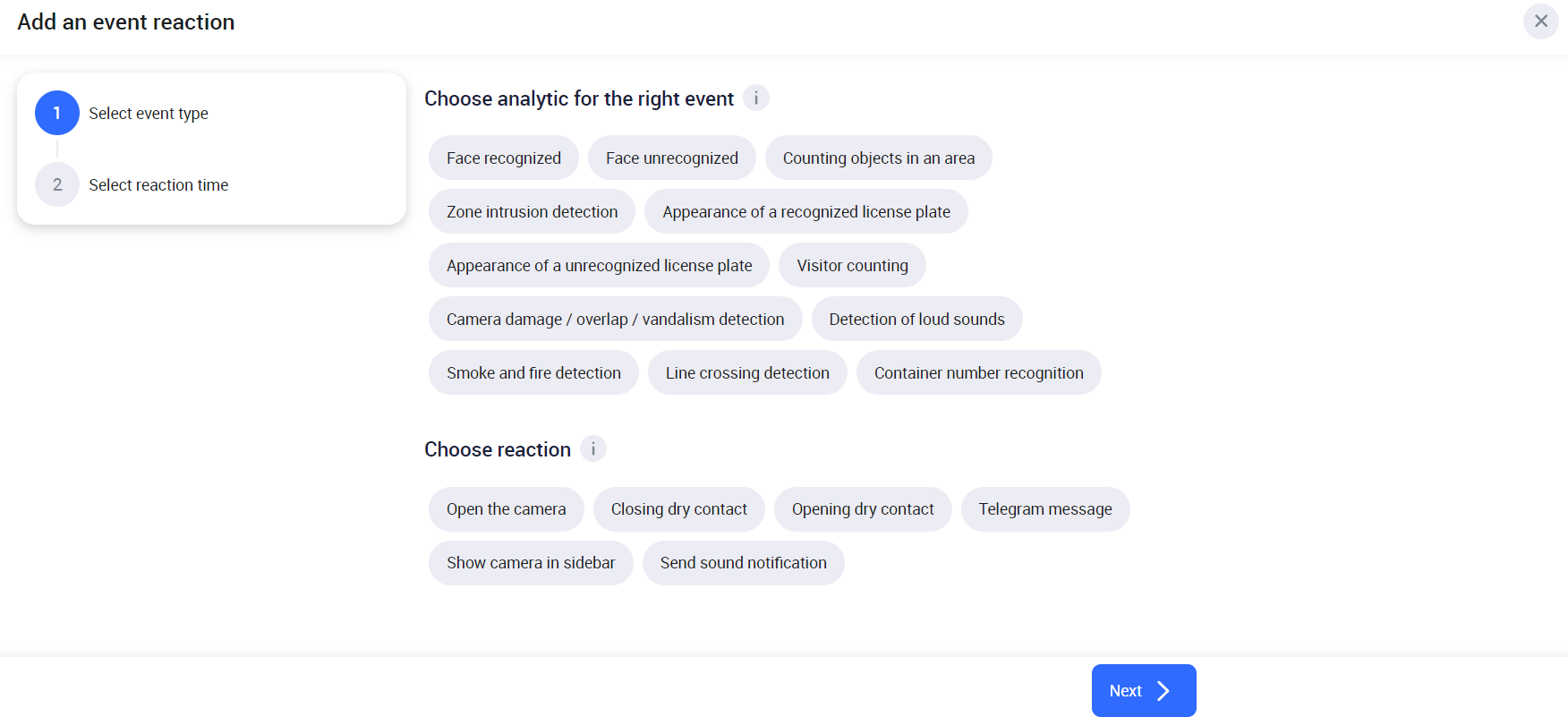
Choose an event type:
-
Face recognized – the image obtained from the camera video stream matches a reference image. Applicable to the Face recognition analytics type.
-
Face unrecognized – the image obtained from the camera video stream doesn't match the reference image. Applicable to the Face recognition analytics type.
-
Counting objects in an area – detection and counting of objects (people) in the detection area. Applicable to the Counting objects in an area analytics type.
-
Zone intrusion detection – an automatic localization of motion in the designated video stream zone. Applicable to the Zone intrusion detection analytics type.
-
Appearance of a recognized license plate – the image of a vehicle number plate obtained from the video stream matches the reference alphanumeric combination of the license plate. Applicable to the License plate recognition analytics type.
-
Appearance of an unrecognized license plate – the image of a vehicle number plate obtained from the video stream doesn’t match the reference alphanumeric combination of the license plate. Applicable to the License plate recognition analytics type.
-
Visitor counting – determination of people crossing a designated line within the observed area, recognition of their gender and age. Applicable to the Visitor counting analytics type.
-
Camera damage/overlap /vandalism detection – detects video stream absence, glare or misfocus of the image, rotation, or obstruction of the camera field of view. Applicable to the Camera damage/overlap/vandalism detection analytics type.
-
Detection of loud sounds – automatic detection of loud sound events with the camera microphone. Applicable to Detection of loud sounds analytics type.
-
Smoke and fire detection – automatic localization and detection of smoke and open fire in the designated video stream area. Applicable to the Smoke and fire detection analytics type.
-
Line crossing detection – automatic localization and determination of the fact of crossing a designated line in the video stream. Applicable to the Line crossing detection analytics type.
-
Container number recognition – analytics type is designed to detect and recognize vertical and horizontal number plates of cargo containers. Applicable to the Container number recognition analytics type.
Next, select a reaction to the event:
-
Open the camera – the video from the camera will automatically open on your screen when the selected analytics event occurs.
-
Closing dry contact – triggers device activation. This capability enables integration with control and management systems such as intercoms and parking barrier gate arms. It is applicable to cameras equipped with a “dry contact” sensor.
-
Opening dry contact – triggers device activation. It is applicable to cameras equipped with a “dry contact” sensor.
-
Telegram message – a message to Telegram will be sent when the selected analytics event occurs.
-
Show camera on sidebar – a screenshot (video snippet) from the camera video will be displayed when the selected analytics event occurs. The sidebar is a side panel displaying selected analytics events.
-
Send sound notification – sends a sound notification when the analytics event occurs.
Select Next to navigate to step 2.
Step 2. Select reaction time
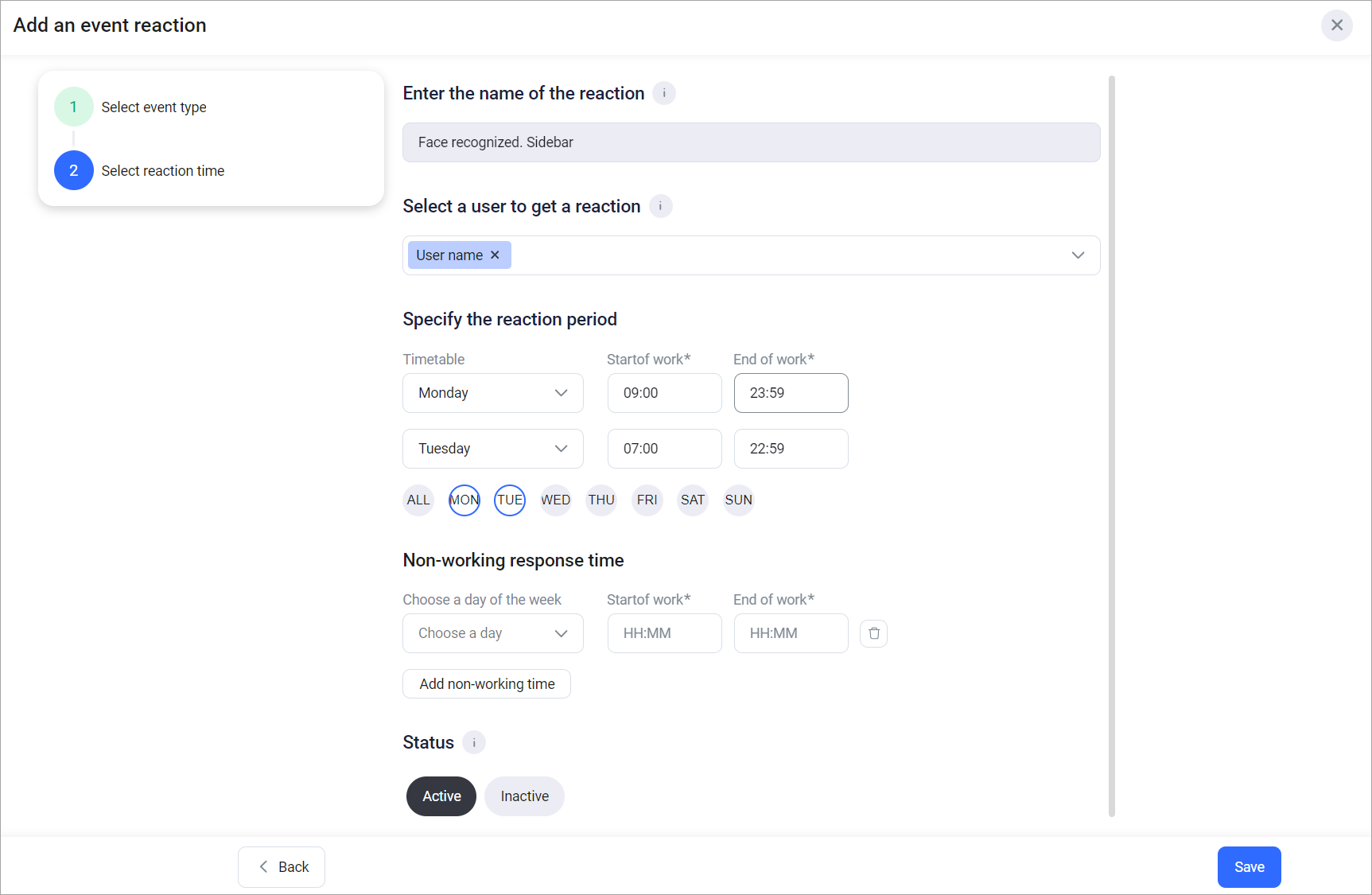
-
Enter the name for the reaction.
-
Select users to receive a reaction.
-
Add a reaction schedule (required).
Upon selecting the days of the week for a reaction operating period, the operating time automatically defaults to the full 24-hour range, from 00:00 to 23:59.
-
Additionally, it is possible to enter a non-working reaction time (non-working time must be within the response time range).
When you edit an event, if the original schedule was set by a user in a different time zone, you'll see a notification. After you make your changes, the schedule will automatically update to reflect your current time zone.
Select a reaction status:
-
Active – reaction triggering is enabled. It’s a default setting.
-
Inactive – reaction triggering is disabled.
Select the Save button.
Add a reaction when creating an analytics case
The form to add a reaction is displayed on step 2 when creating an analytics case.
.png?cb=ee68c1c41acda74690f785ca68a0bb6d)